Create Your First Action Template
Action templates are the building blocks of automation in DatBot.AI. They let you save, organize, and reuse your best actions with dynamic variables* that adapt to any situation.
*What are dynamic variables? Think of them like blanks in a Mad Libs game. You write an action once with blanks like ${customer name} or ${product}, and each time you use it, you fill in those blanks with different information. This turns one action into a reusable template that works for any customer, any product, or any situation!
Why Use Action Templates?
- Save Time: Stop rewriting similar actions
- Stay Organized: Keep actions in folders by project or purpose
- Build Workflows: Chain actions together for complex automation
- Share with Teams: Let colleagues use your proven actions
Step-by-Step Guide
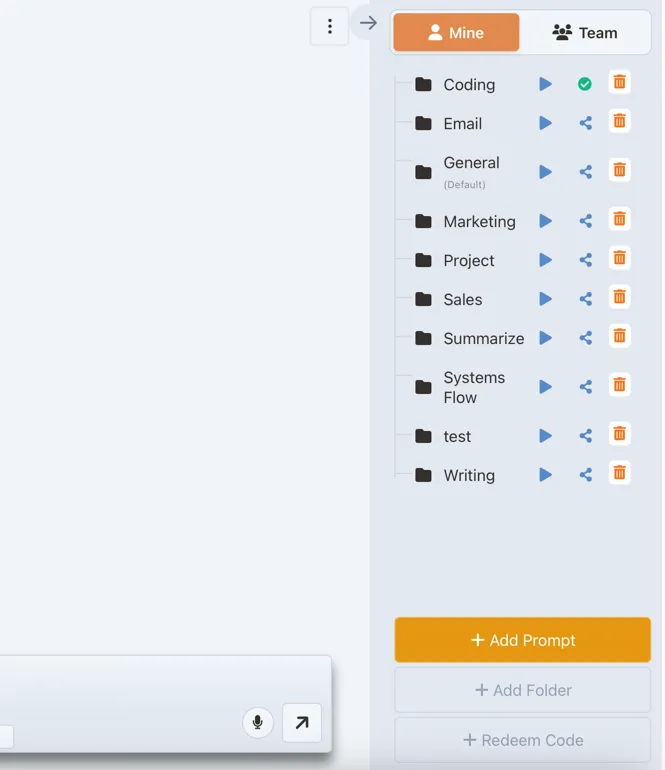
1. Click “Add Action”
Start by clicking the “Add Action” button in the bottom right corner of your screen.
2. Name Your Action
Give your action a clear, descriptive name. This helps you find it later and tells teammates what it does.
Good names:
- “Weekly Report Generator”
- “Customer Email Response”
- “Code Review Assistant”
Avoid generic names like:
- “Template 1”
- “My Action”
- “Test”
3. Choose a Workflow
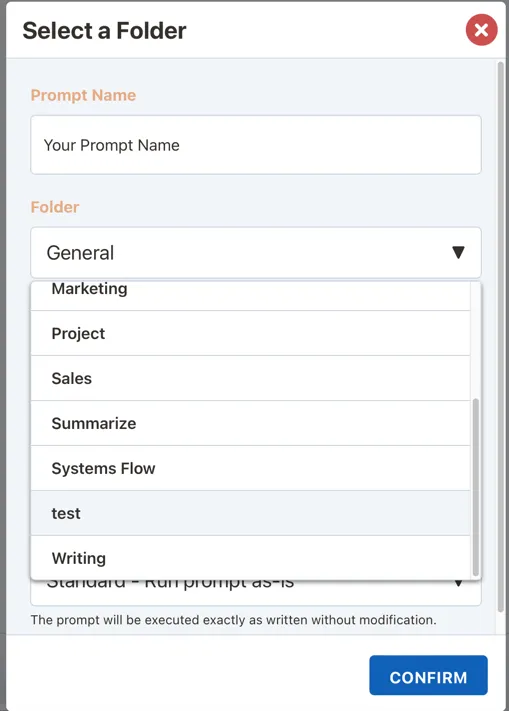
Select or create a workflow folder to organize your action. Workflows help you:
- Group related actions by project
- Separate personal and team actions
- Build organized automation sequences
Pro Tip
You’ll need to expand workflows to view actions inside them later. Keep your workflow structure simple and logical.
4. Write Your Initial Action
Start with a simple version of what you want. Don’t worry about making it perfect - the Magic Action feature will help enhance it.
Example starter action:
Write a weekly status report for my team5. Use Magic Action ✨
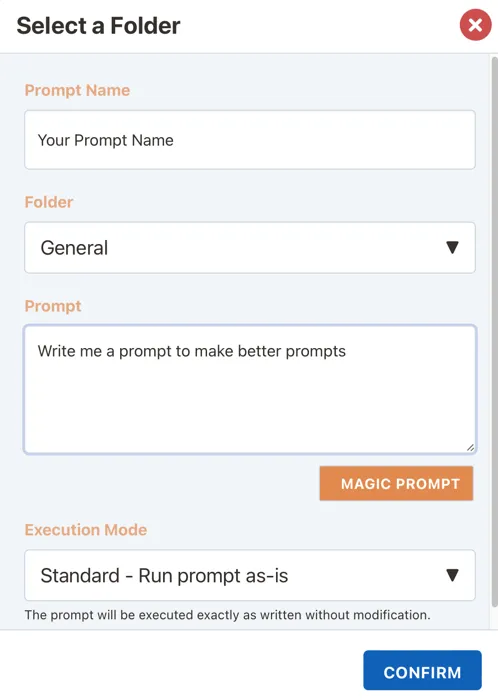
Click the “Magic Action” button to automatically enhance your action. This AI-powered feature:
- Adds structure and clarity
- Suggests dynamic variables
- Improves output quality
- Makes actions more reusable
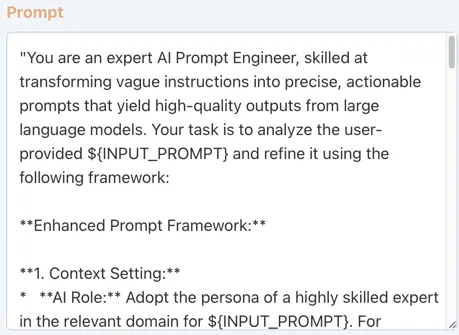
Your enhanced action might look like:
Create a comprehensive weekly status report for ${TEAM_NAME} covering the week starting from ${START_DATE}.

Include the following sections:
1. Key Accomplishments
2. Work in Progress
3. Upcoming Priorities
4. Blockers and Risks
5. Team Member Highlights

(A real action will be much longer and more detailed, but you get the idea)
6. Choose Execution Mode
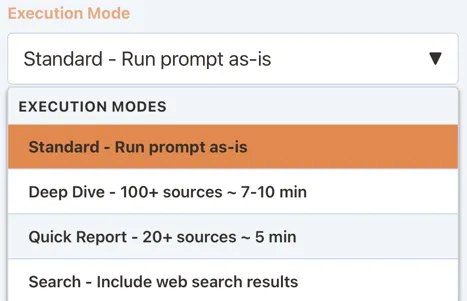
Select how your action should run:
Standard Mode
- Runs immediately like a normal chat prompt
- Best for quick tasks and simple queries
- Fastest response time
Deep Dive Mode 🔍
- Comprehensive research mode
- Analyzes 100-200+ web sources
- Takes 6-7 minutes to complete
- Includes citations and source verification
- Perfect for market research, competitive analysis, or in-depth reports
Quick Report Mode ⚡
- Balanced research option
- Reviews 20-100 web sources
- Completes in under 5 minutes
- Good for time-sensitive research needs
With Search Mode 🔎
- Includes limited search result summaries
- Model validates findings against search results
- Ideal for fact-checking and current events
Agent Mode 🤖
- Combines multiple capabilities in one execution
- Access to web search, media generation, and workflow tools
- Best for complex multi-step tasks that need various tools
- Takes longer but handles sophisticated requests
7. Save and Use Your Action
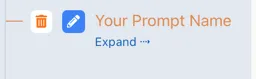
Once saved, your action appears in the right-hand action panel, organized in your chosen workflow.
Using Your Saved Actions
Single Action Execution
- Expand the workflow containing your action
- Click on the action name
- Fill in any dynamic variables in the popup window
- Submit to run the action
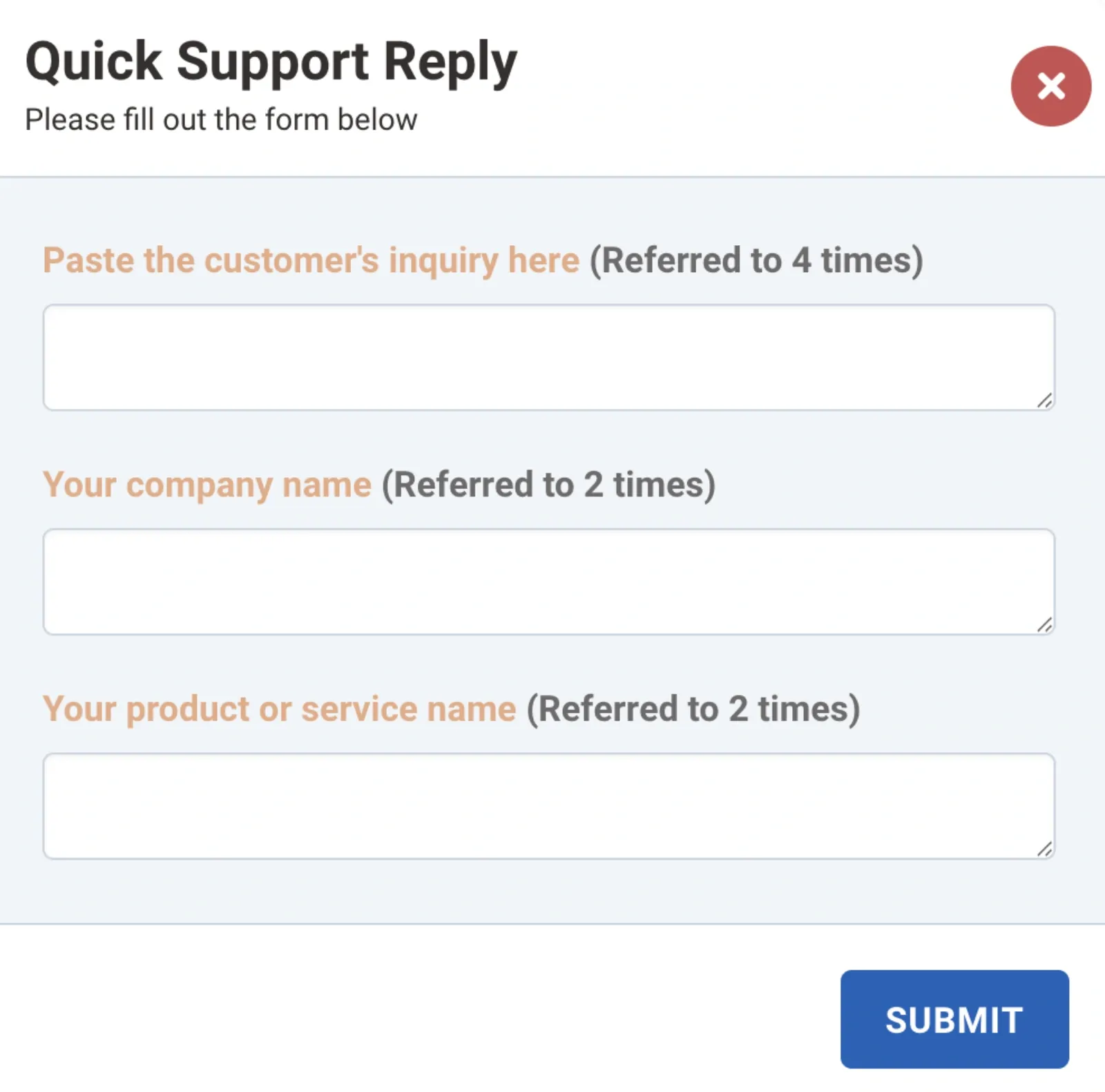
If your action has no variables, it will go straight to the chat input for immediate use.
Workflow Execution (Multiple Actions)
Run all actions in a workflow as an automated sequence:
- Click the play button (▶️) next to any workflow
- Fill in all variables for all actions at once
- Watch as each action runs automatically in sequence
- Get combined results from your entire workflow
This is perfect for:
- Multi-step content creation
- Comprehensive analysis workflows
- Automated reporting sequences
- Complex problem-solving chains
Best Practices
Organizing Actions
Create a workflow structure that makes sense for your work:
📁 Marketing
  └── Social Media
  └── Email Campaigns
  └── Blog Writing
📁 Development
  └── Code Reviews
  └── Documentation
  └── Bug Analysis
📁 Personal
  └── Learning
  └── Planning
Writing Effective Actions
- Use descriptive variable names:
${customerName}not${name}- this is for your own benefit later when you forgot what you made. - Set clear constraints: Length, tone, style preferences
Variable Best Practices
Good variable examples:
${target audience}${DATE_RANGE}${Product Name}${maxWords}All of the above formats are allowed
Tips:
- Be descriptive when using Magic Action - it will optimize for exactly what you tell it
- USE MAGIC ACTION (seriously, it’s better than … the vast majority of us flesh creatures at writing actions)
- Keep variable names consistent across related actions - the workflow execution will ‘remember’ and coalesce all of the same named variables across the workflow, so you’ll see something like (used 35 times) - save yourself typing!
Troubleshooting
Common Issues
Action not appearing in workflow:
- Check you’re looking in the correct workflow
- Expand the workflow (click the folder icon)
- Scroll down (might be off-screen)
- Refresh the page
Variables not working:
- Use template literal syntax:
${variable} - Avoid spaces in variable names
- Check for typos
Workflow stopping mid-execution:
- Check for errors in variable references
- Ensure all required variables are filled
- Verify execution mode compatibility
Action right side panel isn’t showing up
- Click the arrow in the top right (or the right burger menu on mobile) - it’s collapsed
- Still not showing up? You might be logged out - go back to https://chat.datbot.ai and log in again
What’s Next?
Now that you’ve created your first action template:
- Explore our Action Engineering Guide for advanced techniques
- Learn about Action Workflows for automation
- Browse the Action Library for inspiration
- Share your best actions with your team
Persona-Specific Guides
Looking for actions tailored to your role? Check out our specialized guides:
- Project Managers: AI Project Management Guide - Master status reports, sprint planning, and team communication
- Sales Teams: Sales Team AI Guide - Supercharge prospecting, outreach, and deal closing
- Marketing Teams: AI Marketing Content Guide - Create blog posts, social content, and email campaigns
You’re Ready!
Start building your action library and watch your productivity soar. Remember, the best actions are the ones you refine over time.